
Two minute blogging tips – How to create Instagram templates in Canva
This is a wee doozy! … instead of recreating a whole new Insta image from scratch each time you want to promote one of your blogs… simply get yourself organized in advance! – this seriously took me 15 minutes to set this up!
Disclaimer: This post contains links, that if clicked, and you make a purchase, or start a trial, I may make a small commission, at no additional cost to you. I only recommend products I 🧡
How to create Instagram templates in Canva
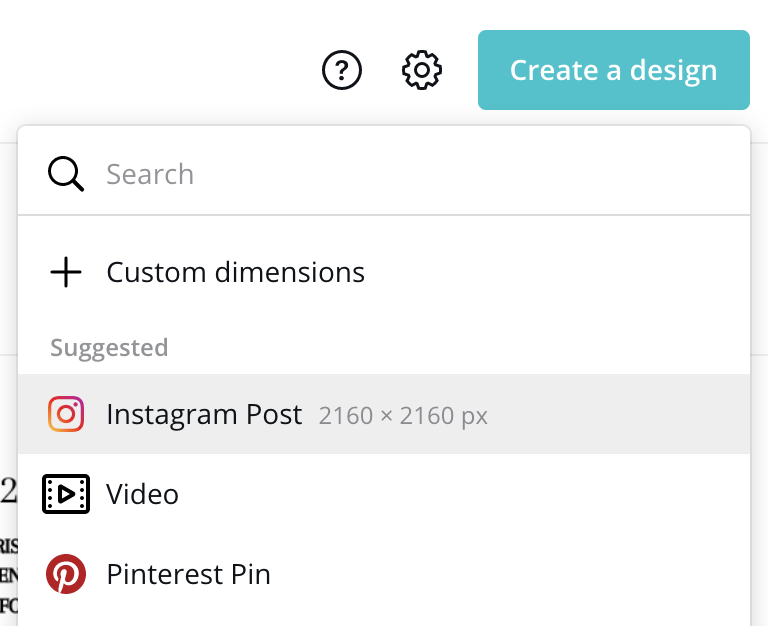
- Create a series of blank Instagram Posts in Canva
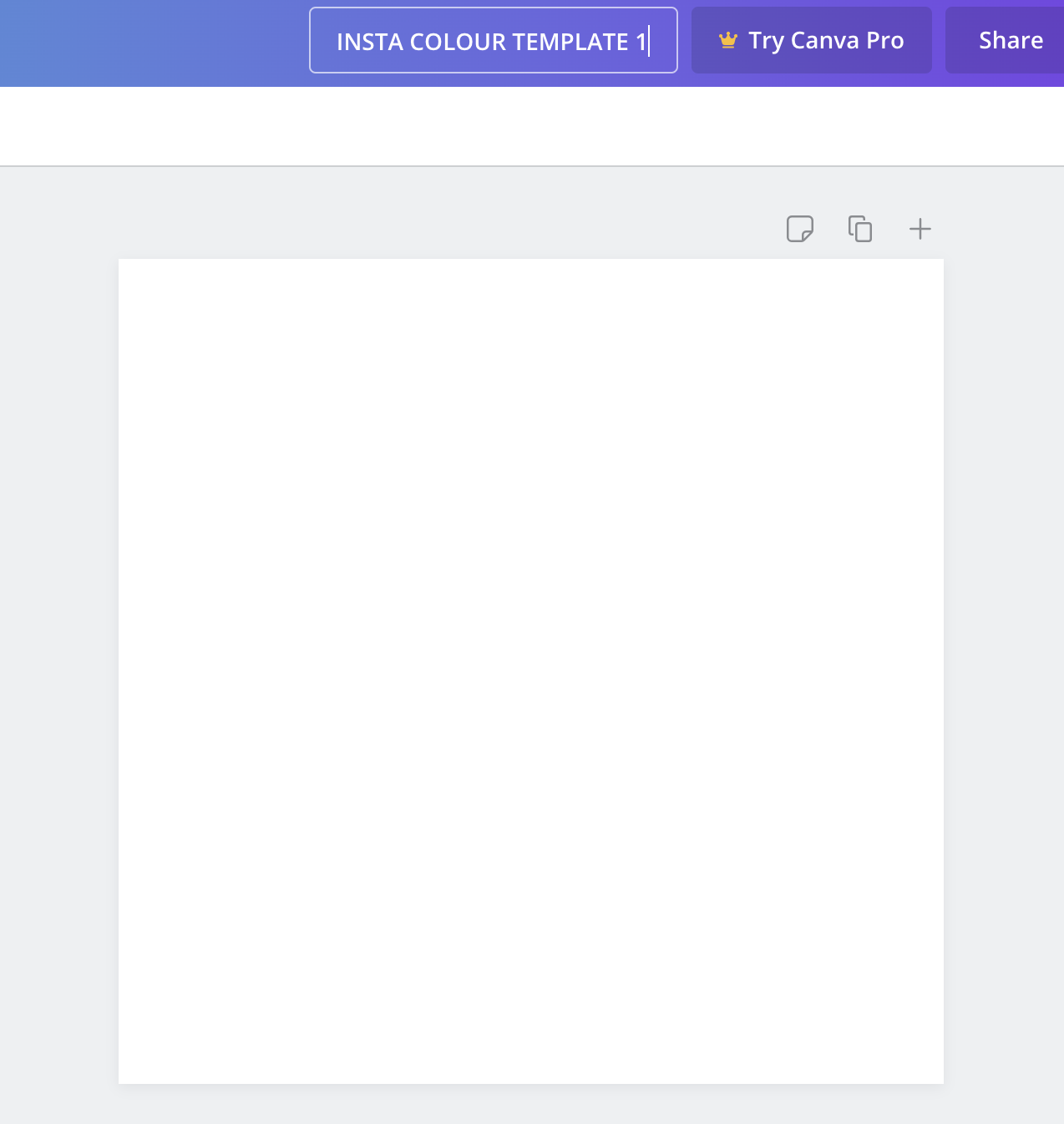
2. Number these according to how many colour variations you have in your brand style guide. I have 7.
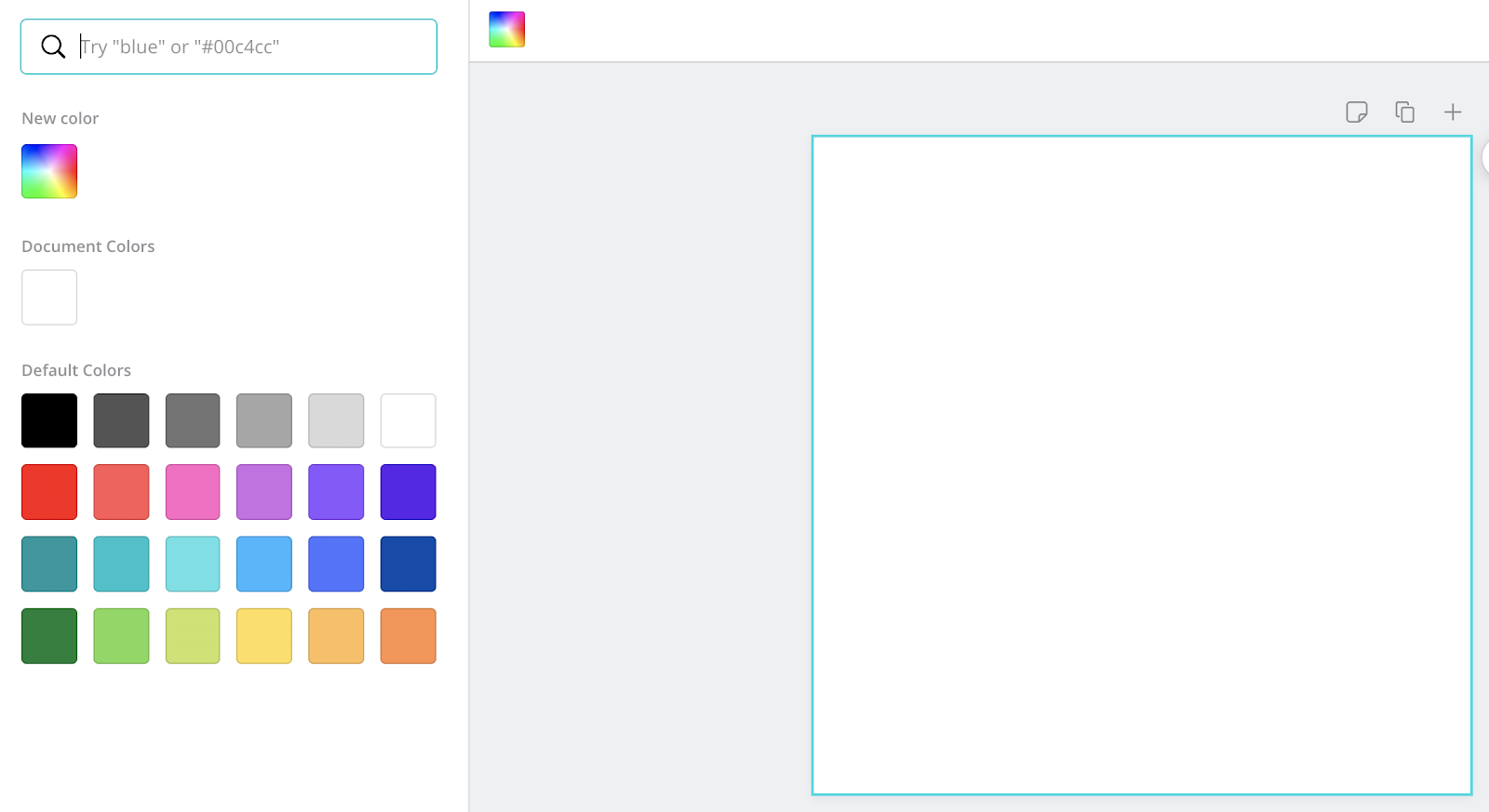
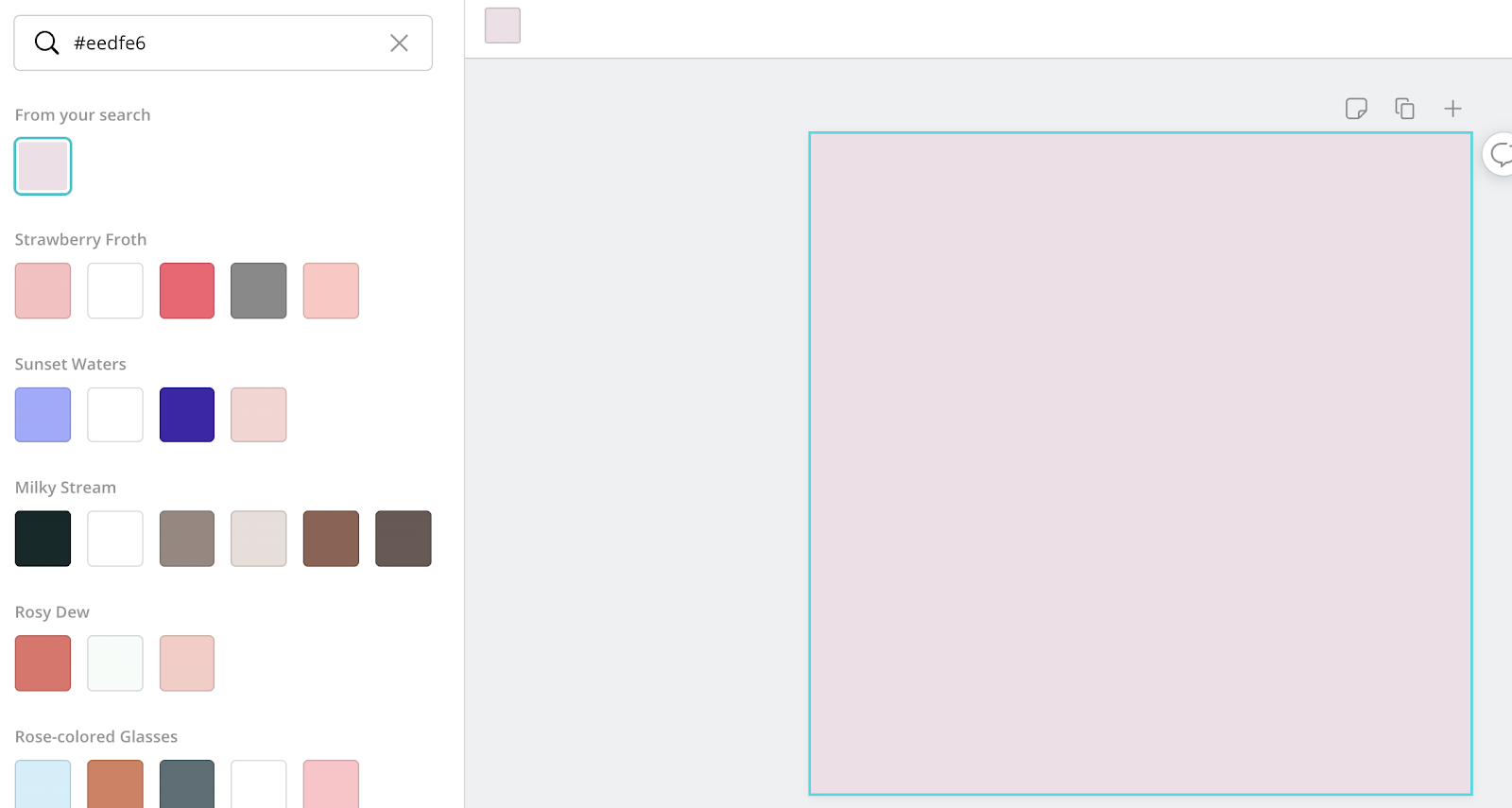
3. Mock up colour templates in Canva by cutting and pasting your brand colour # numbers into the search bar on the left hand side
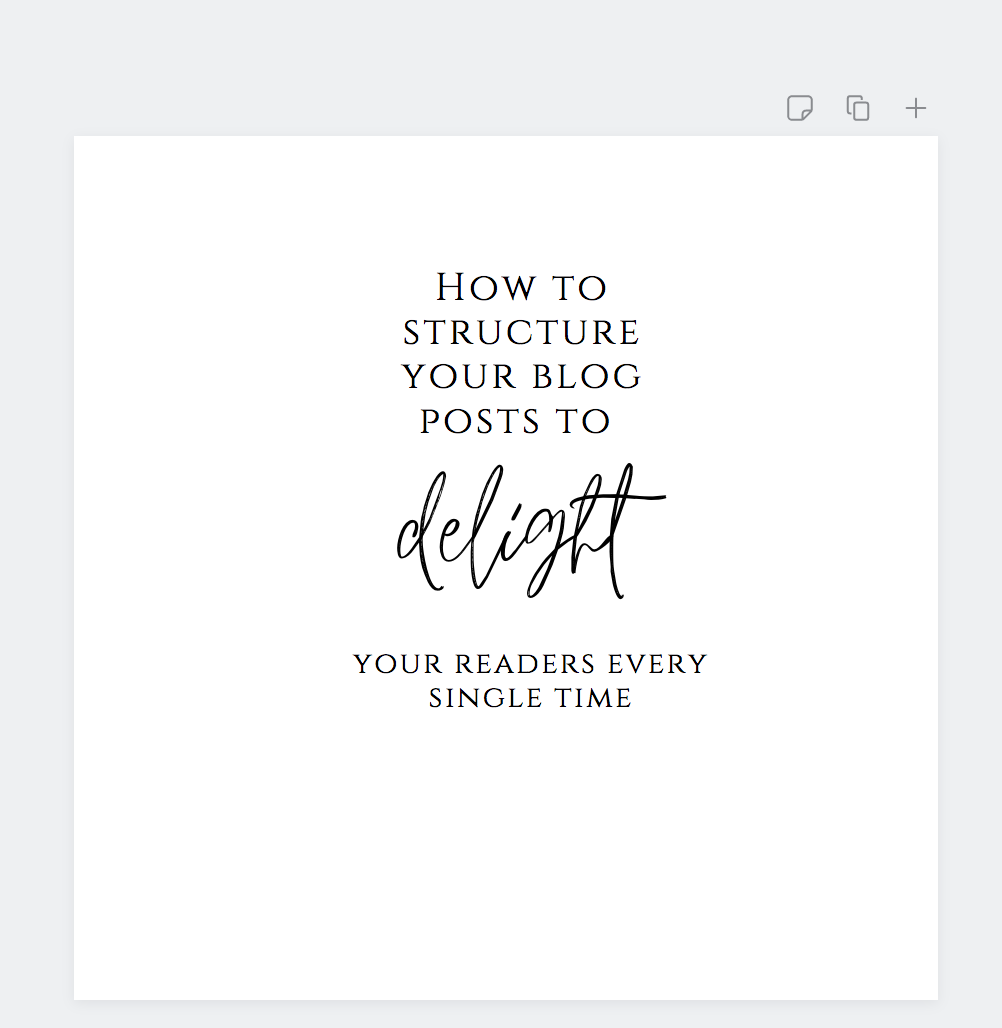
4. Create blank Instagram font templates in Canva – as you did above for the color templates
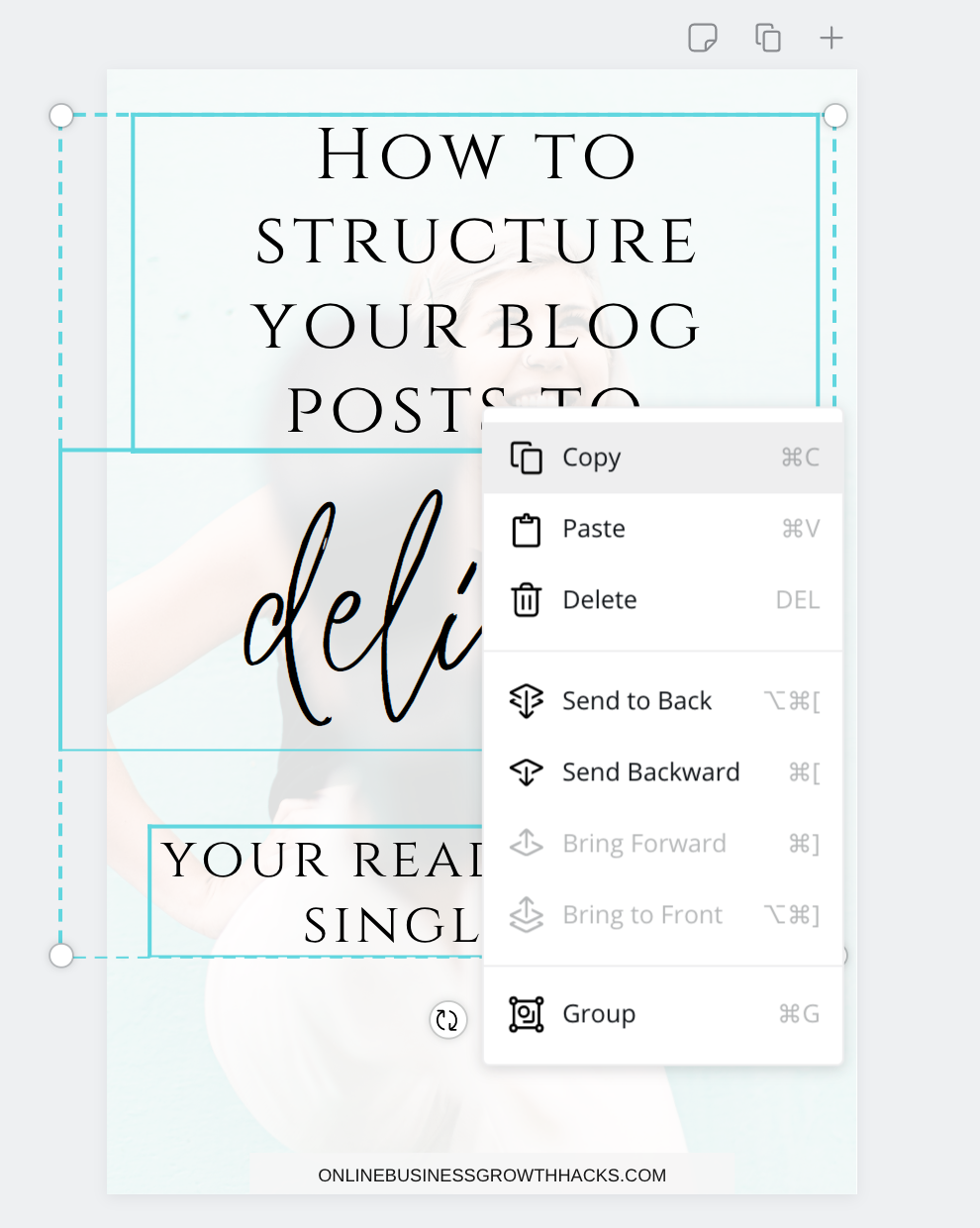
5. Copy and paste some of your favourite font layouts from your previously well performing Pins onto the blank font template
6. Create a new folder in Canva
7. Save all new colour and font templates into your new folder so you can easily access them
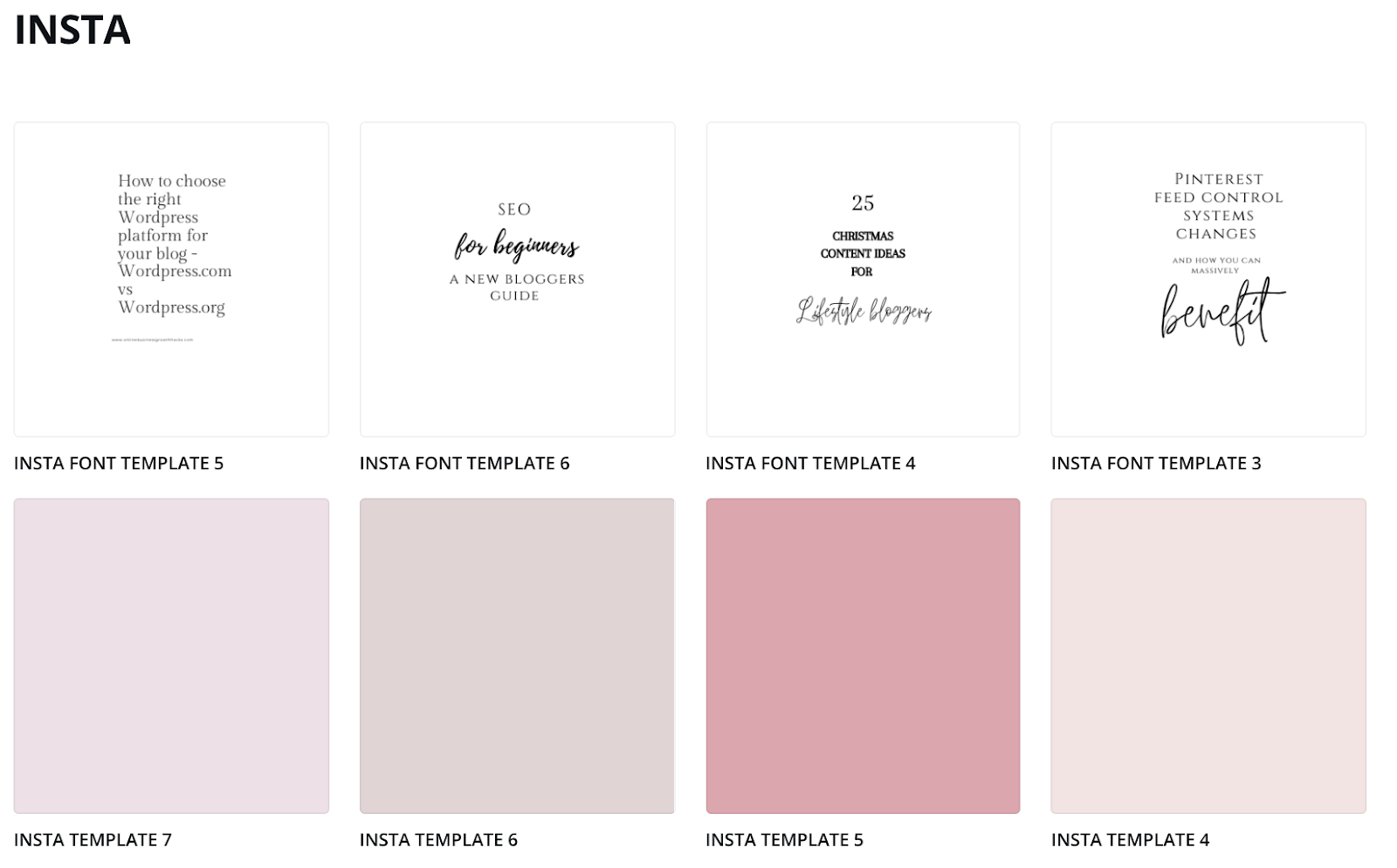
6. Each time you need a new Instagram post – just make a copy of the colour template of your choice.
7. Then, cut and paste the desired font and text layout off one of you preferred font templates. Lastly, change out the text to your new content and drop it into your new design!
Voila! There you have it. Awesome Instagram templates in Canva in just 15 minutes! Get more followers fast by checking out our smart guide to Instagram followers.


 QUIT THE NINE TO FIVE
Leave a comment